How to Use

FULL COMBO TRIAL

Note: in-image text is currently in Japanese. English captions are provided below each image.

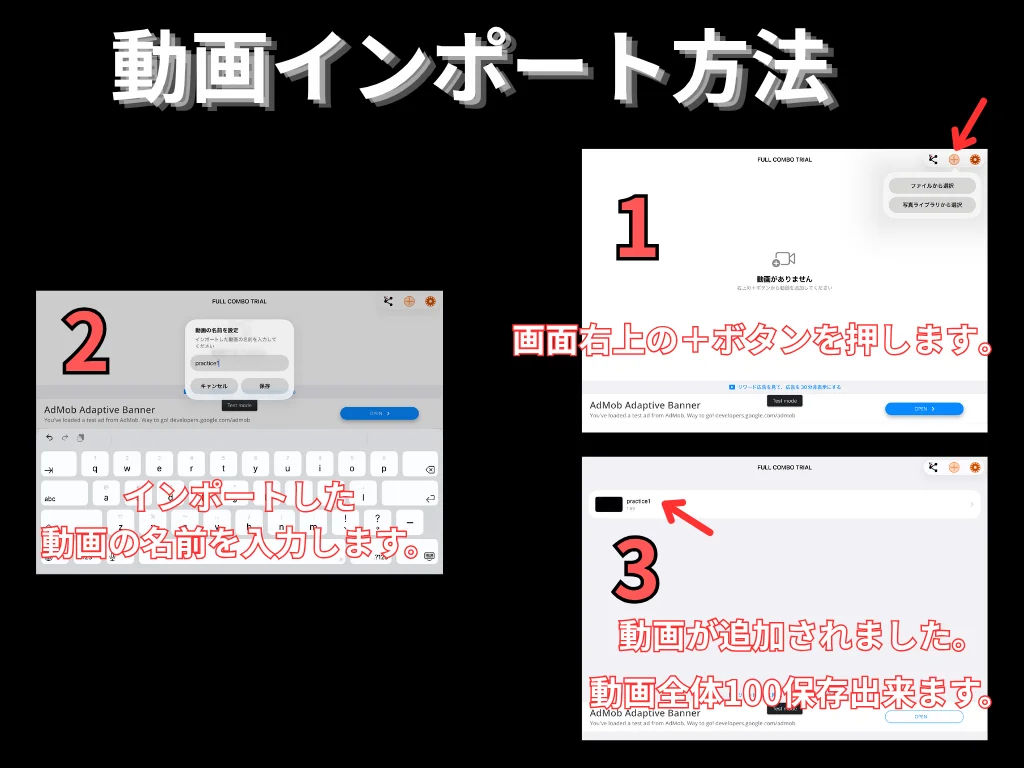
  1. How to import a video. Tap the + button at the top right, enter a video name, and the video is added. Up to 100 videos can be saved.

    How to import a video. Tap the + button at the top right, enter a video name, and the video is added. Up to 100 videos can be saved.

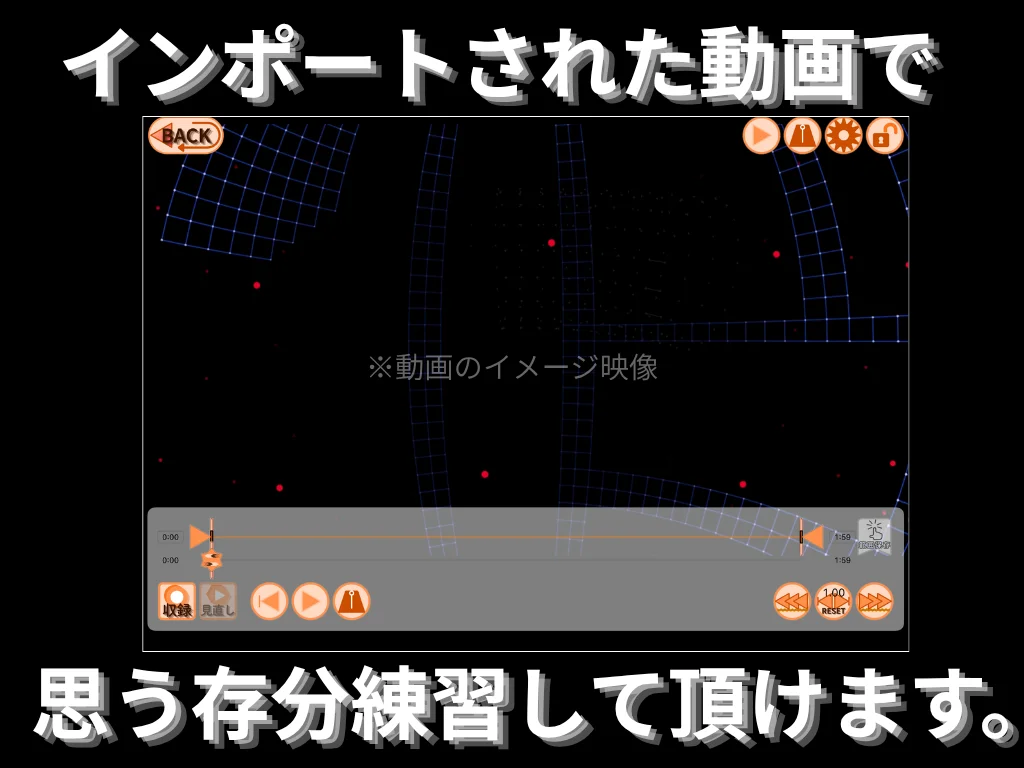
  2. Practice freely with the videos you have imported.

    Practice freely with the videos you have imported.

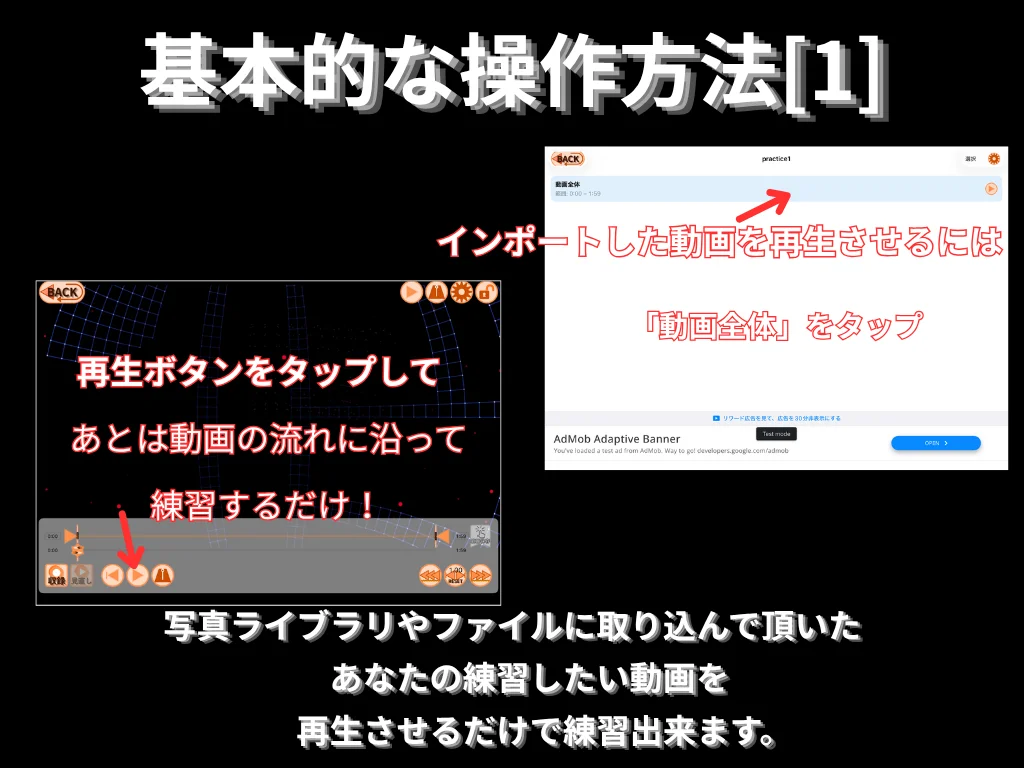
  3. Basic controls. Tap Whole Video to play your imported video. Press play, then practice along with the video.

    Basic controls. Tap "Whole Video" to play your imported video. Press play, then practice along with the video.

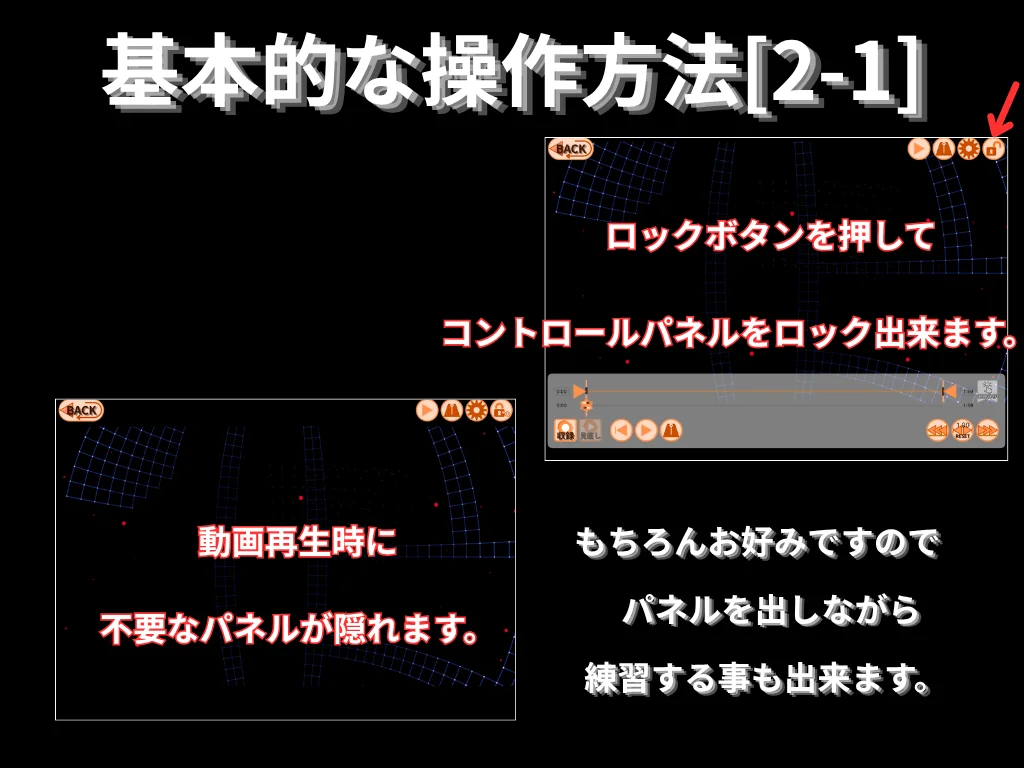
  4. Press the lock button to lock the control panel and hide it during playback. You can also keep the panel visible while practicing if you prefer.

    Press the lock button to lock the control panel and hide it during playback. You can also keep the panel visible while practicing if you prefer.

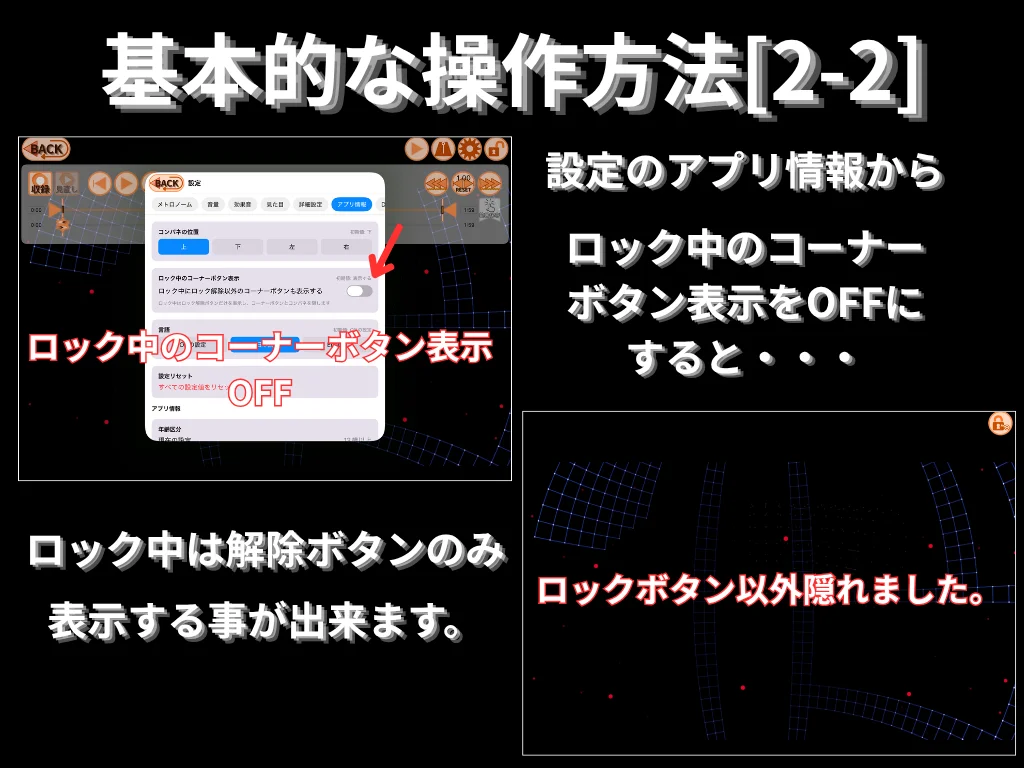
  5. Open Settings > App Info and turn off Show corner buttons while locked to display only the unlock button while locked.

    Open Settings > App Info and turn off "Show corner buttons while locked" to display only the unlock button while locked.

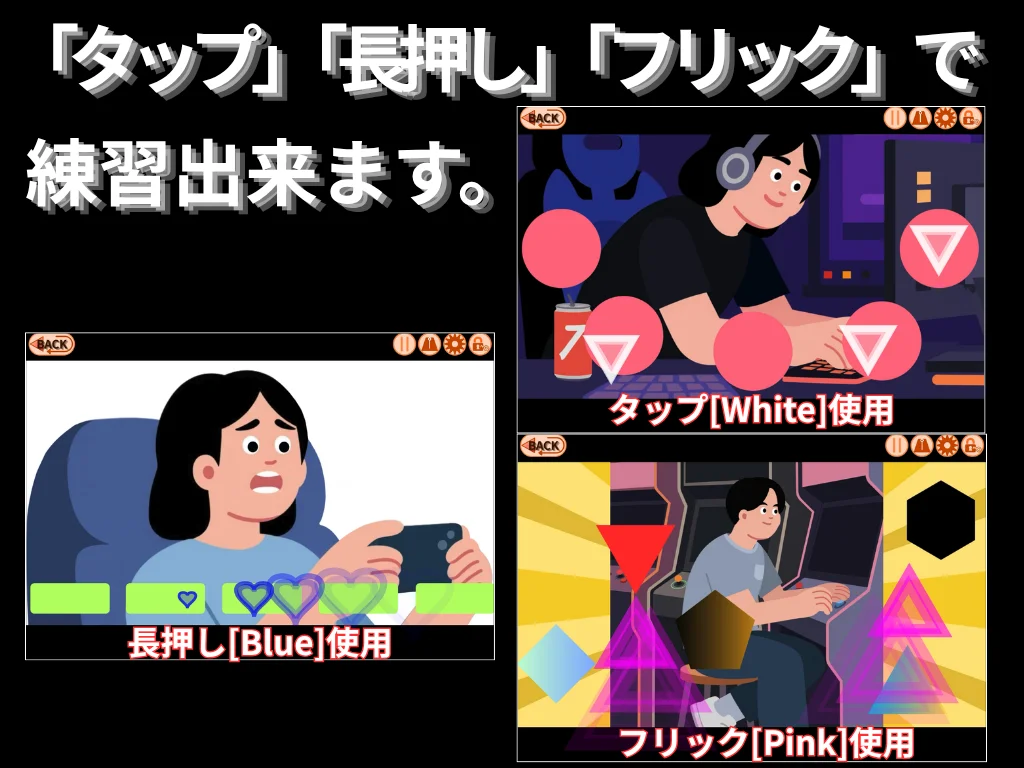
  6. Practice with tap, hold, and flick gestures. White for tap, blue for hold, pink for flick.

    Practice with tap, hold, and flick gestures. White for tap, blue for hold, pink for flick.

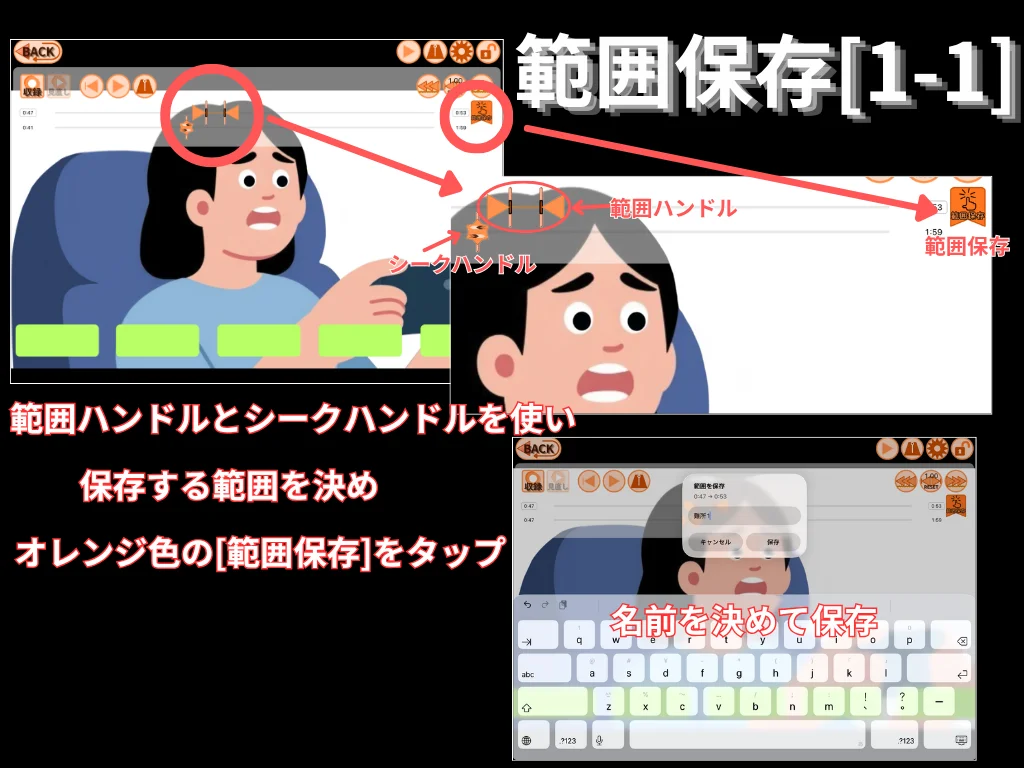
  7. Save a section. Use the range handles and seek handle to define the section, then tap the orange Save button.

    Save a section. Use the range handles and seek handle to define the section, then tap the orange Save button.

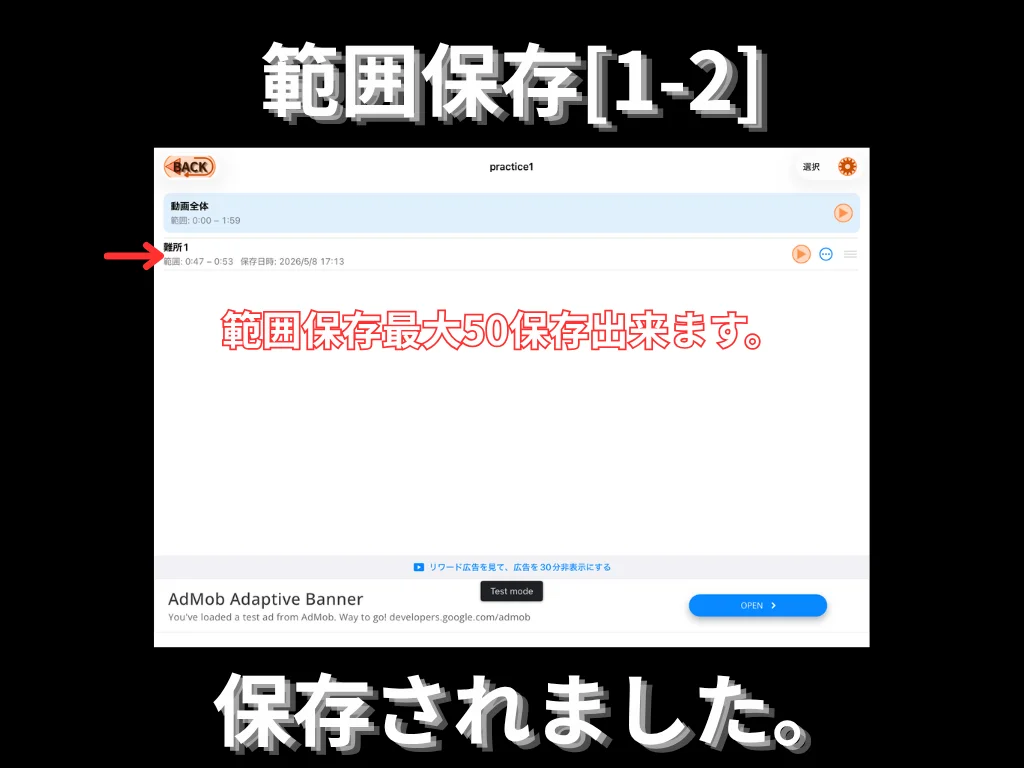
  8. Section saved. Up to 50 sections can be stored.

    Section saved. Up to 50 sections can be stored.

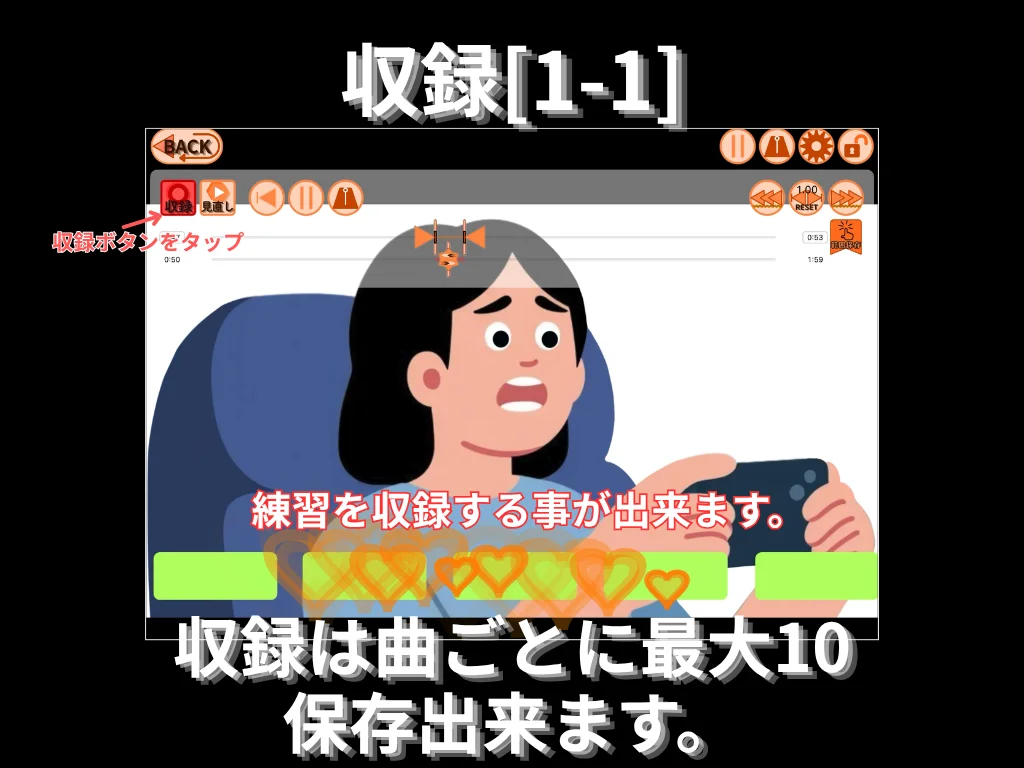
  9. Record your practice. Tap the record button to capture a session. Up to 10 recordings per song can be saved.

    Record your practice. Tap the record button to capture a session. Up to 10 recordings per song can be saved.

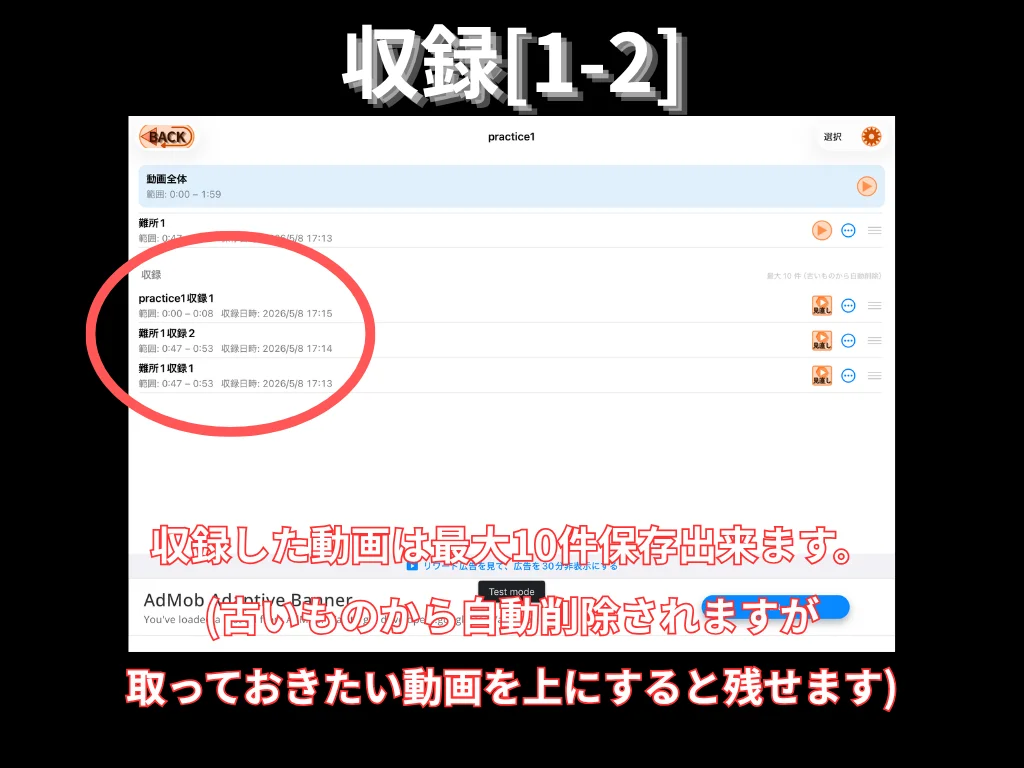
  10. Up to 10 recordings are kept; older ones are auto-deleted. Move important recordings to the top to keep them.

    Up to 10 recordings are kept; older ones are auto-deleted. Move important recordings to the top to keep them.

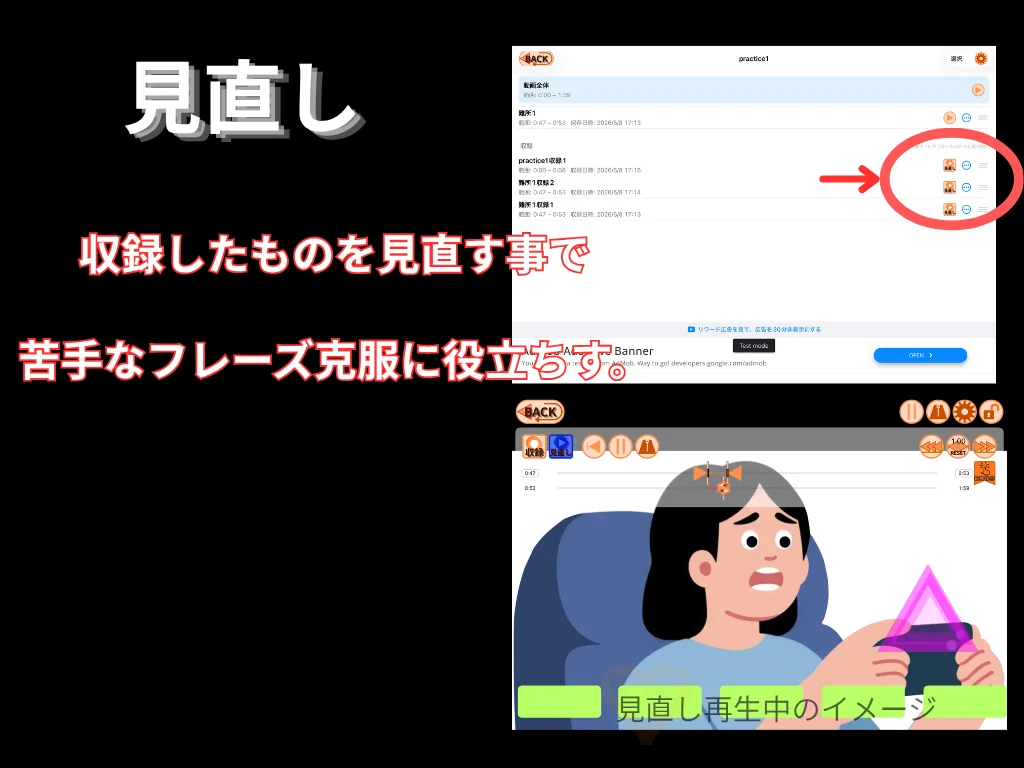
  11. Review. Replay your recordings to overcome difficult passages.

    Review. Replay your recordings to overcome difficult passages.

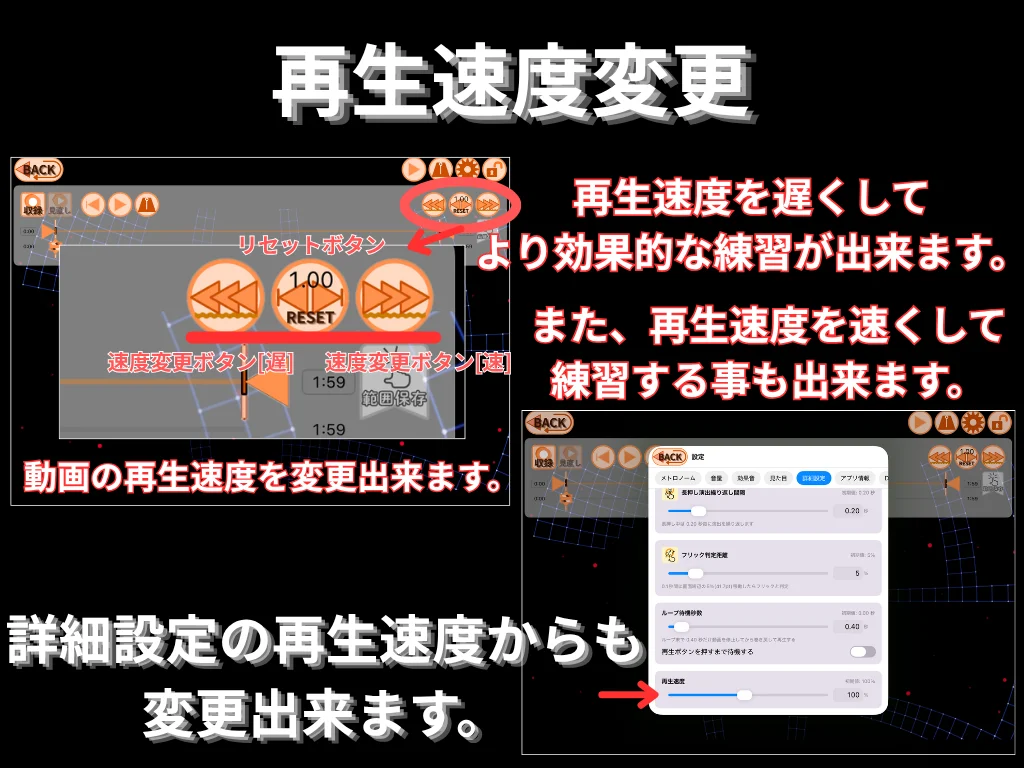
  12. Change playback speed. Slow down for focused practice or speed up for a challenge. Speed can also be changed in Advanced settings.

    Change playback speed. Slow down for focused practice or speed up for a challenge. Speed can also be changed in Advanced settings.

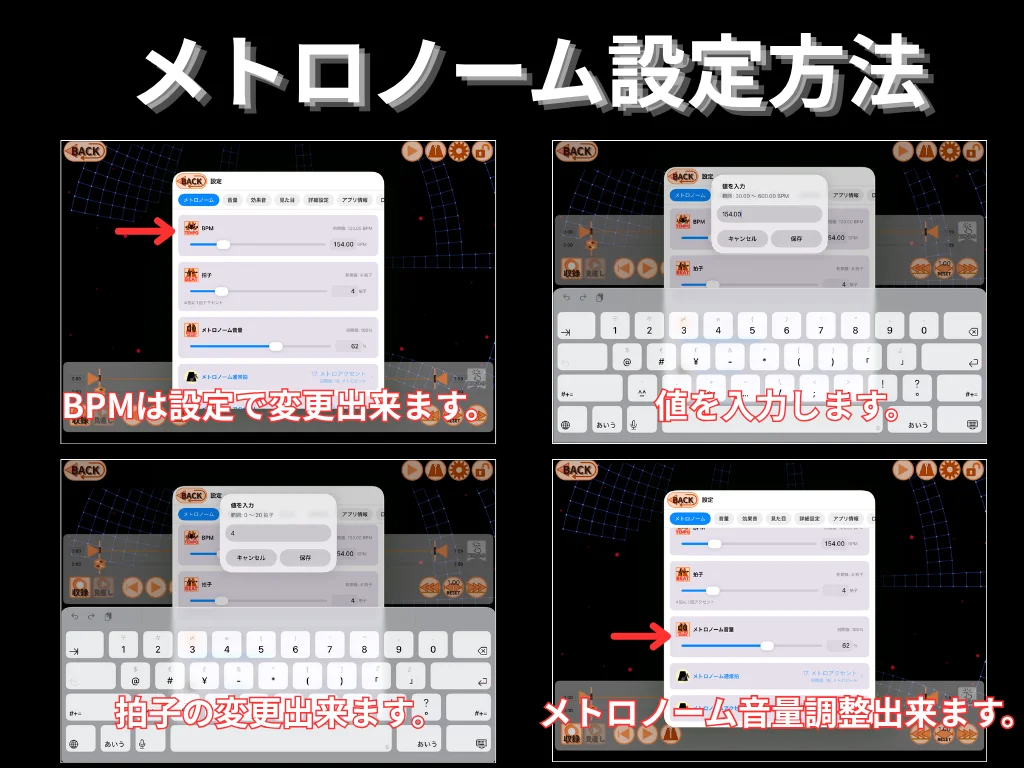
  13. Metronome setup. Adjust BPM, time signature, and volume.

    Metronome setup. Adjust BPM, time signature, and volume.

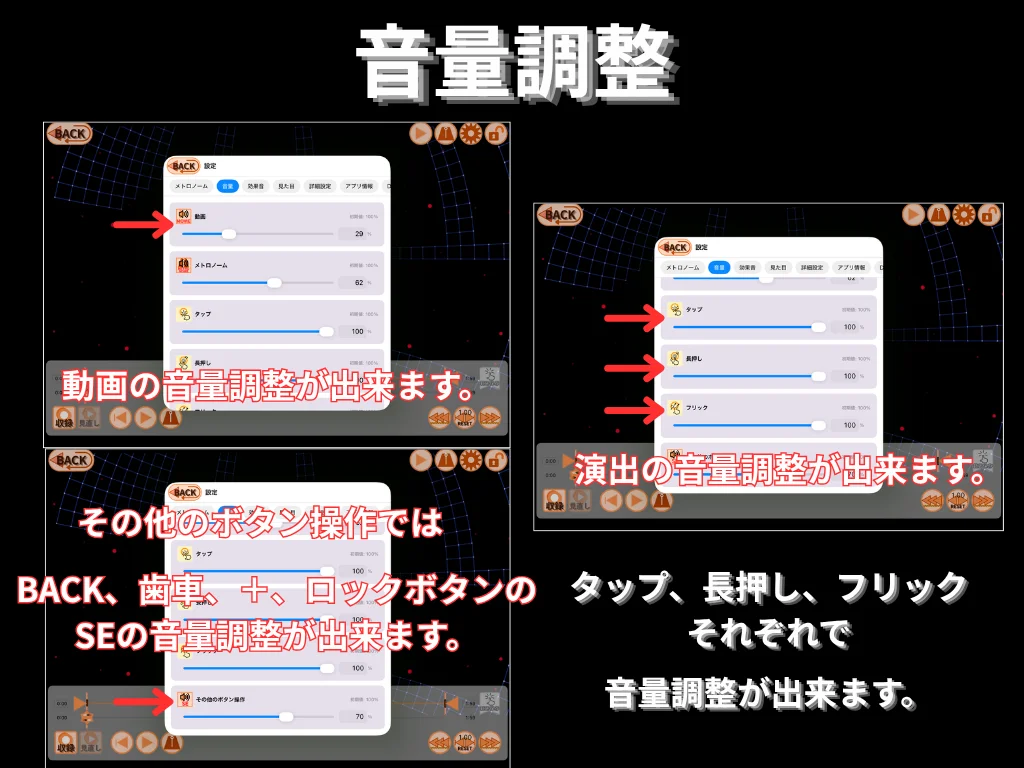
  14. Volume control. Adjust the video volume, the volume of tap, hold, and flick sounds individually, and the UI sound effects (back, settings, lock).

    Volume control. Adjust the video volume, the volume of tap / hold / flick sounds individually, and the UI sound effects (back, settings, lock).

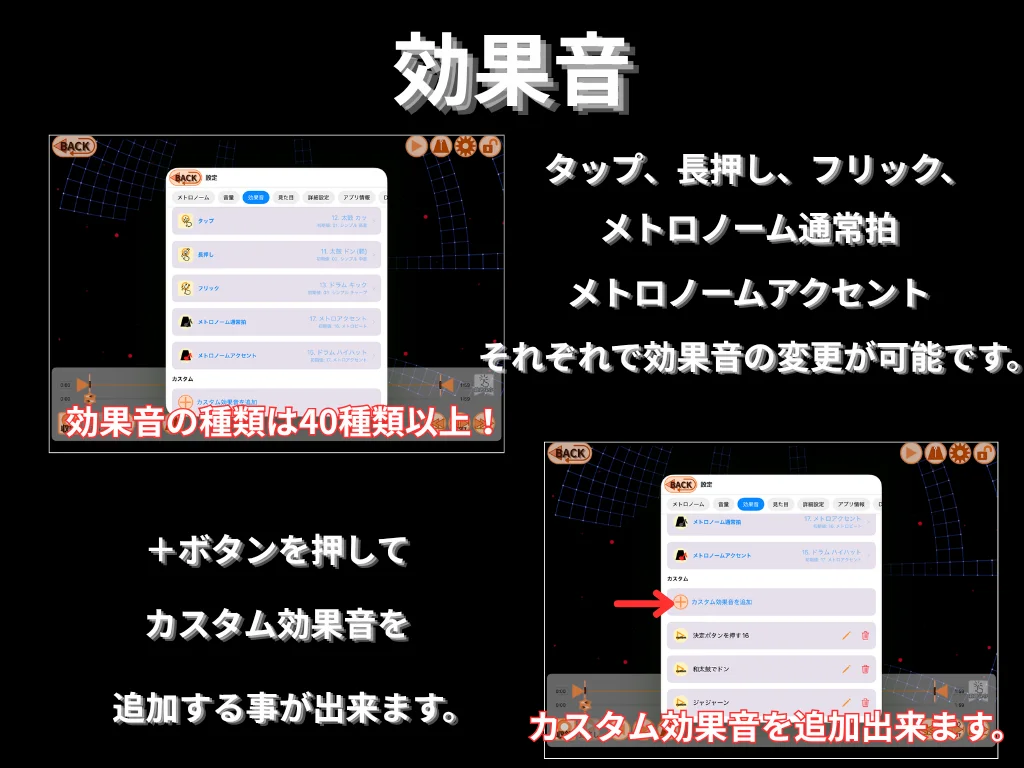
  15. Sound effects. Choose from 40+ built-in sounds for tap, hold, flick, metronome beat, and metronome accent. Tap the + button to add your own custom sounds.

    Sound effects. Choose from 40+ built-in sounds for tap, hold, flick, metronome beat, and metronome accent. Tap the + button to add your own custom sounds.

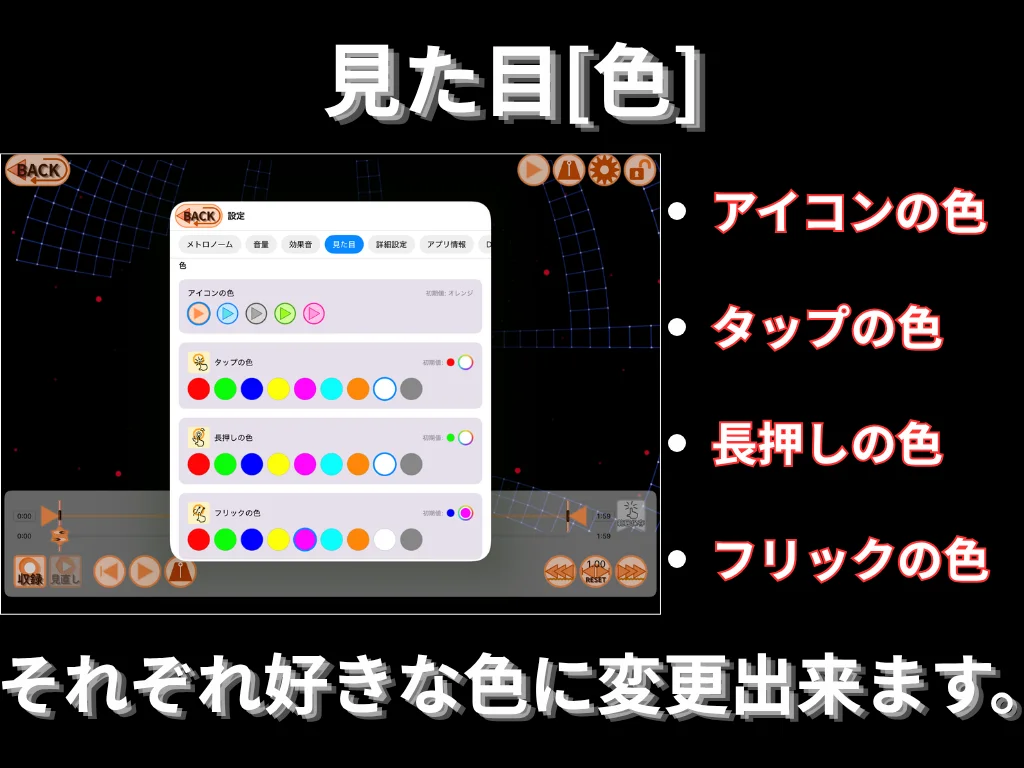
  16. Appearance (color). Customize the colors of icons, tap, hold, and flick markers independently.

    Appearance (color). Customize the colors of icons, tap, hold, and flick markers independently.

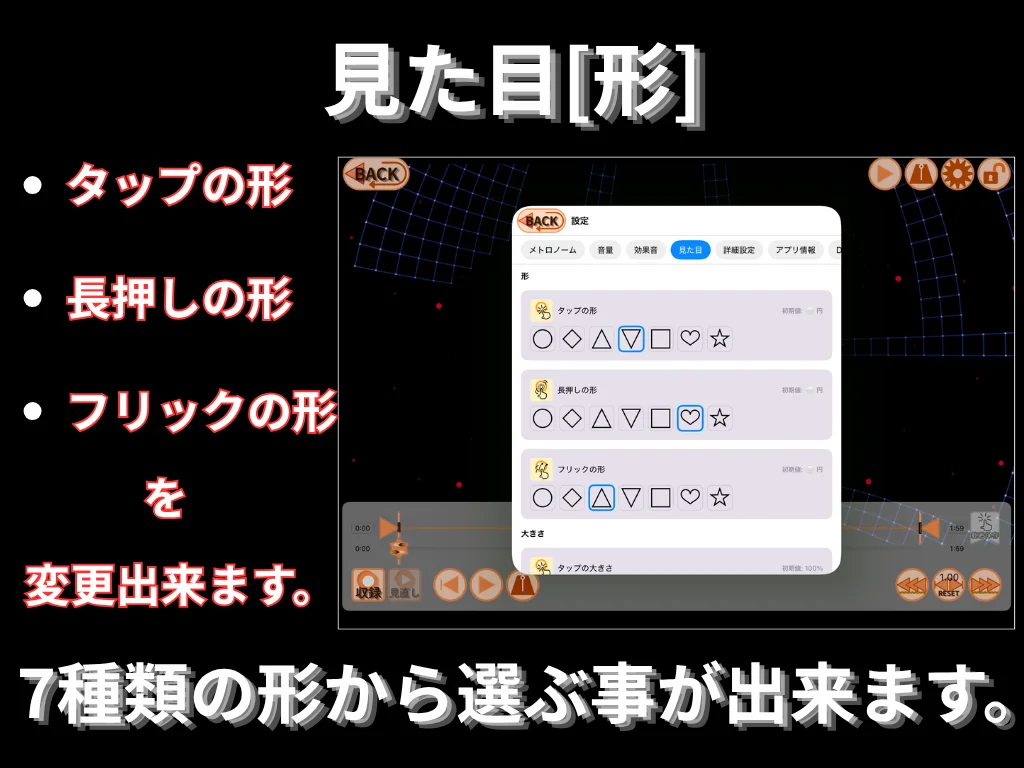
  17. Appearance (shape). Choose from 7 shapes for tap, hold, and flick markers.

    Appearance (shape). Choose from 7 shapes for tap, hold, and flick markers.

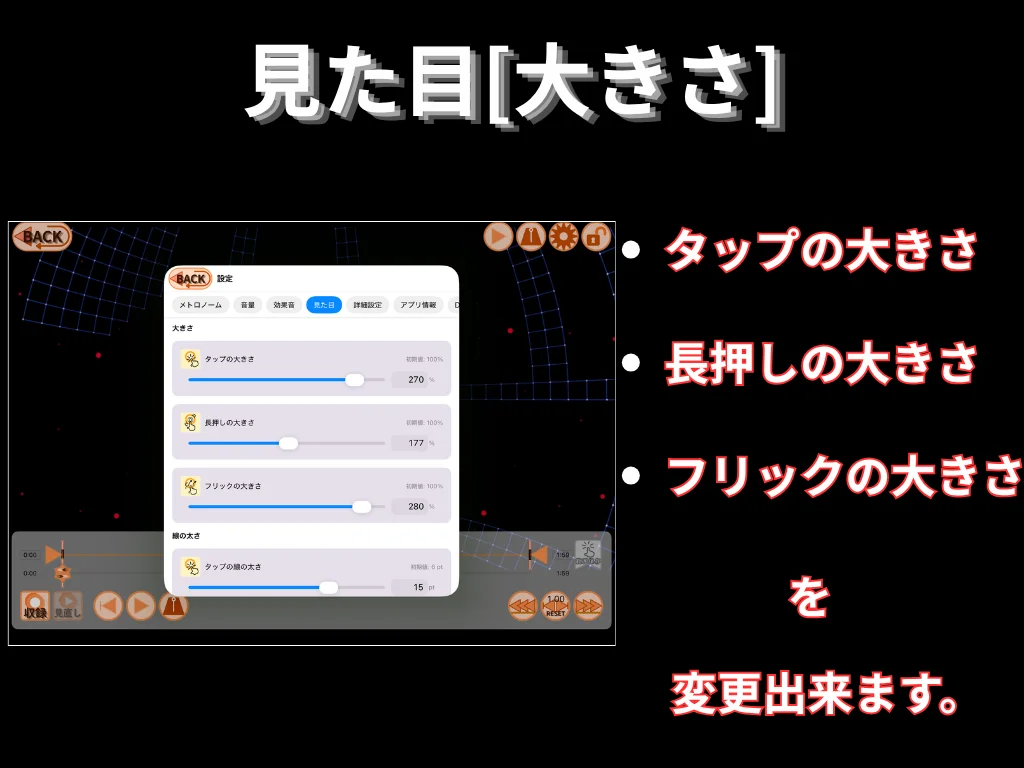
  18. Appearance (size). Adjust the size of tap, hold, and flick markers.

    Appearance (size). Adjust the size of tap, hold, and flick markers.

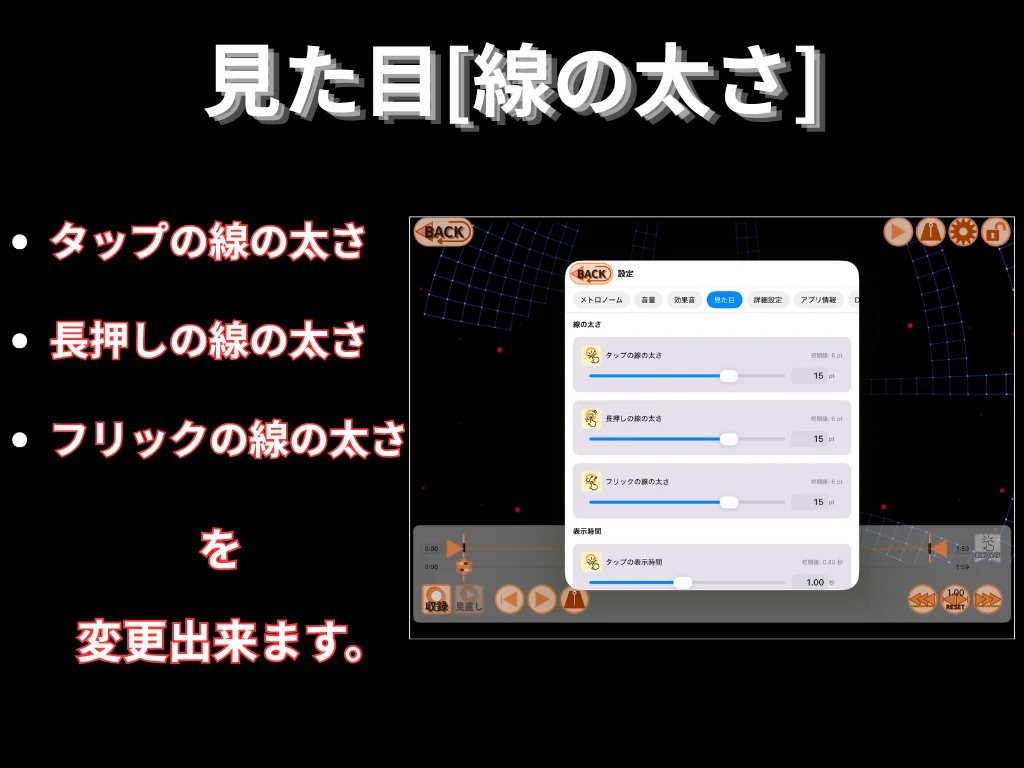
  19. Appearance (line width). Adjust the line width of tap, hold, and flick markers.

    Appearance (line width). Adjust the line width of tap, hold, and flick markers.

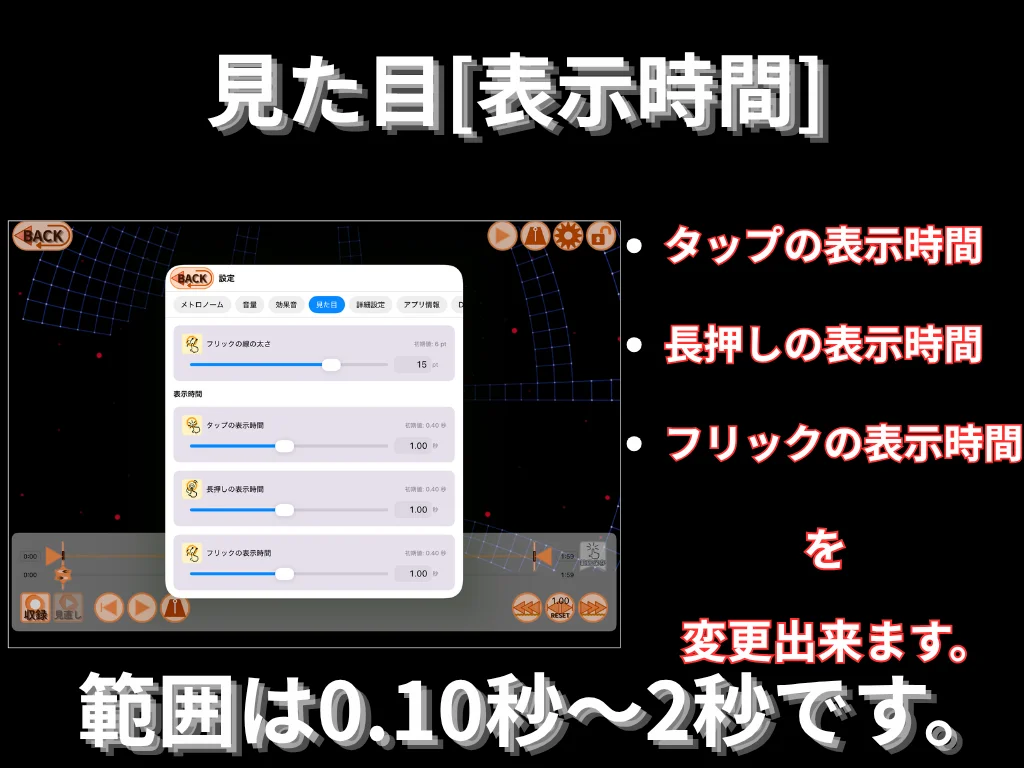
  20. Appearance (display duration). Adjust how long tap, hold, and flick markers stay on screen, between 0.10 and 2 seconds.

    Appearance (display duration). Adjust how long tap, hold, and flick markers stay on screen, between 0.10 and 2 seconds.

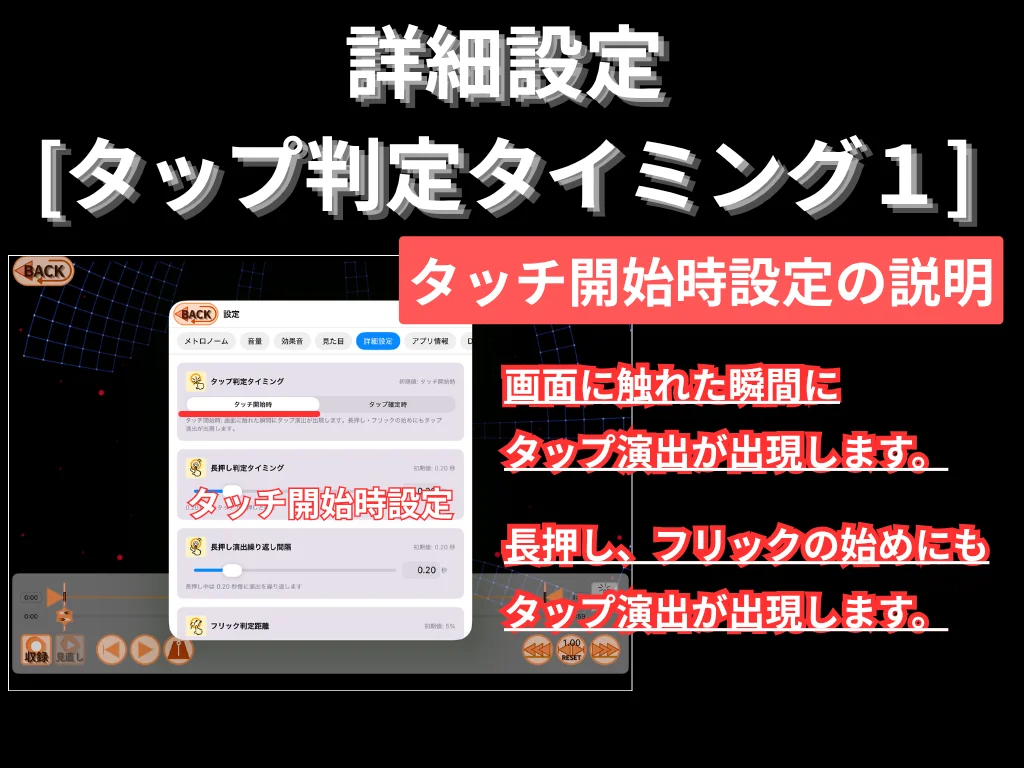
  21. Advanced (tap timing 1). Touch-start mode: a tap effect appears the instant you touch the screen, including at the start of holds and flicks.

    Advanced (tap timing 1). Touch-start mode: a tap effect appears the instant you touch the screen, including at the start of holds and flicks.

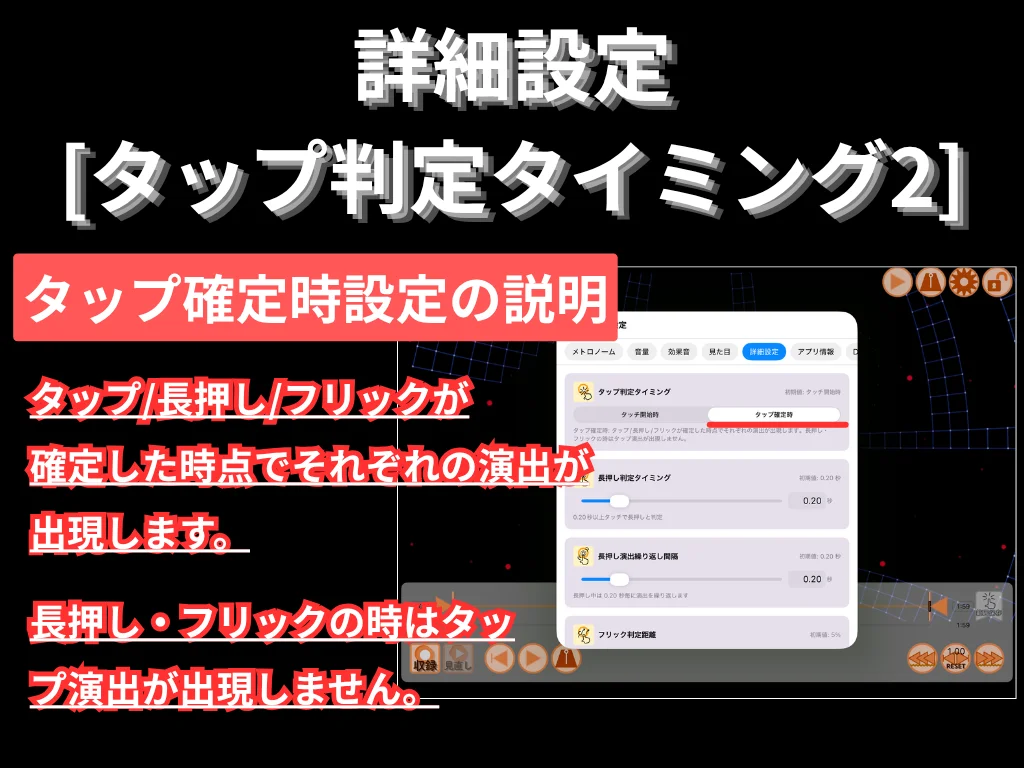
  22. Advanced (tap timing 2). Tap-confirmed mode: each effect appears only when tap, hold, or flick is confirmed; no tap effect during holds or flicks.

    Advanced (tap timing 2). Tap-confirmed mode: each effect appears only when tap, hold, or flick is confirmed; no tap effect during holds or flicks.

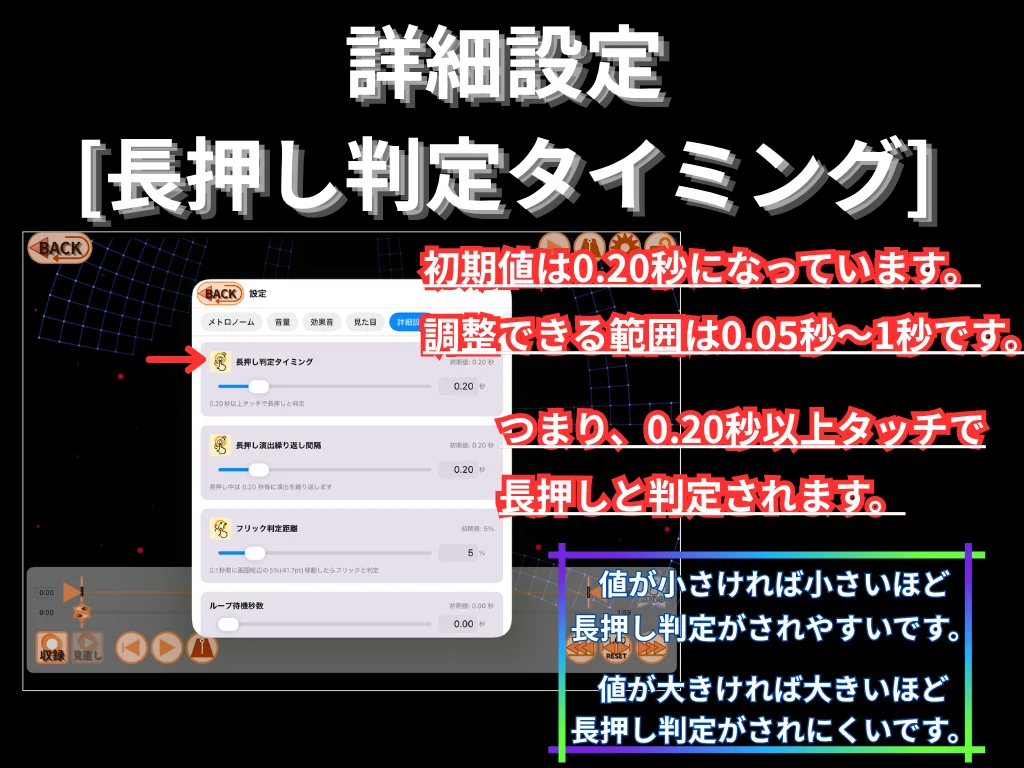
  23. Advanced (hold timing). Default 0.20 s, range 0.05 s to 1 s. A touch held for the threshold or longer is treated as a hold. Smaller values trigger holds more easily; larger values make holds harder to trigger.

    Advanced (hold timing). Default 0.20 s, range 0.05 s to 1 s. A touch held for the threshold or longer is treated as a hold. Smaller values trigger holds more easily; larger values make holds harder to trigger.

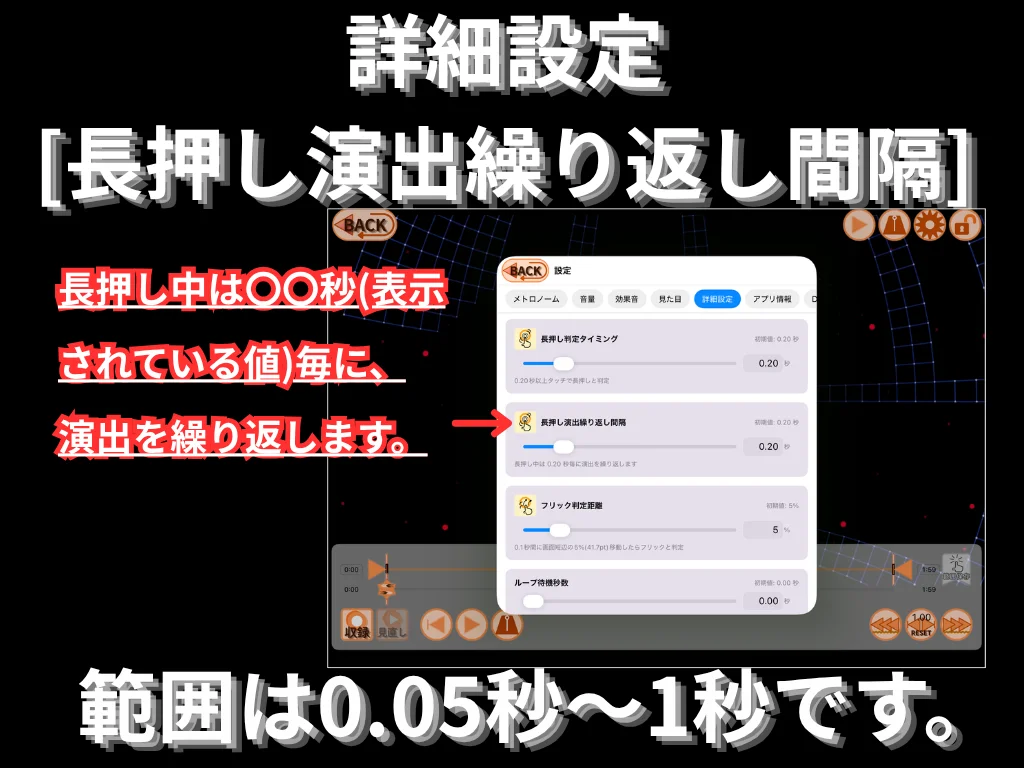
  24. Advanced (hold repeat interval). The hold effect repeats at the specified interval while the touch is held. Range: 0.05 s to 1 s.

    Advanced (hold repeat interval). The hold effect repeats at the specified interval while the touch is held. Range: 0.05 s to 1 s.

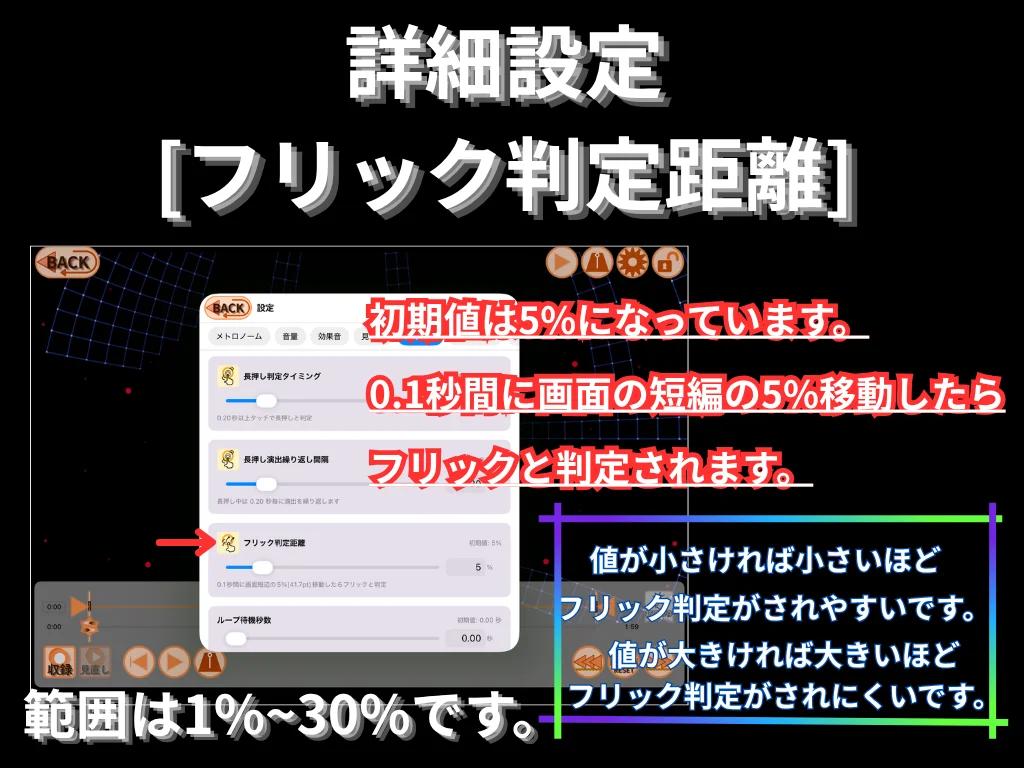
  25. Advanced (flick distance). Default 5 %, range 1 % to 30 % of the shorter side of the screen (width in portrait, height in landscape). A swipe travelling more than this distance within 0.1 s is recognized as a flick. Smaller values trigger flicks more easily.

    Advanced (flick distance). Default 5 %, range 1 % to 30 % of the shorter side of the screen (width in portrait, height in landscape). A swipe travelling more than this distance within 0.1 s is recognized as a flick. Smaller values trigger flicks more easily.

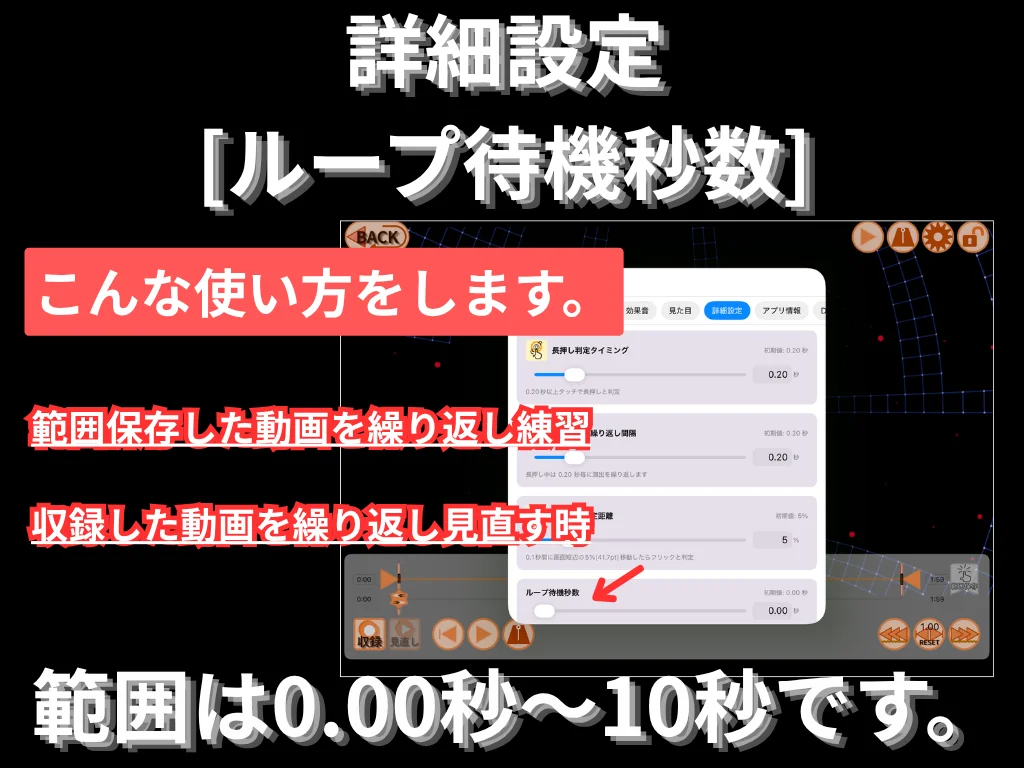
  26. Advanced (loop wait seconds). Wait time between repeats when looping a saved section or replaying a recording. Range: 0.00 s to 10 s.

    Advanced (loop wait seconds). Wait time between repeats when looping a saved section or replaying a recording. Range: 0.00 s to 10 s.

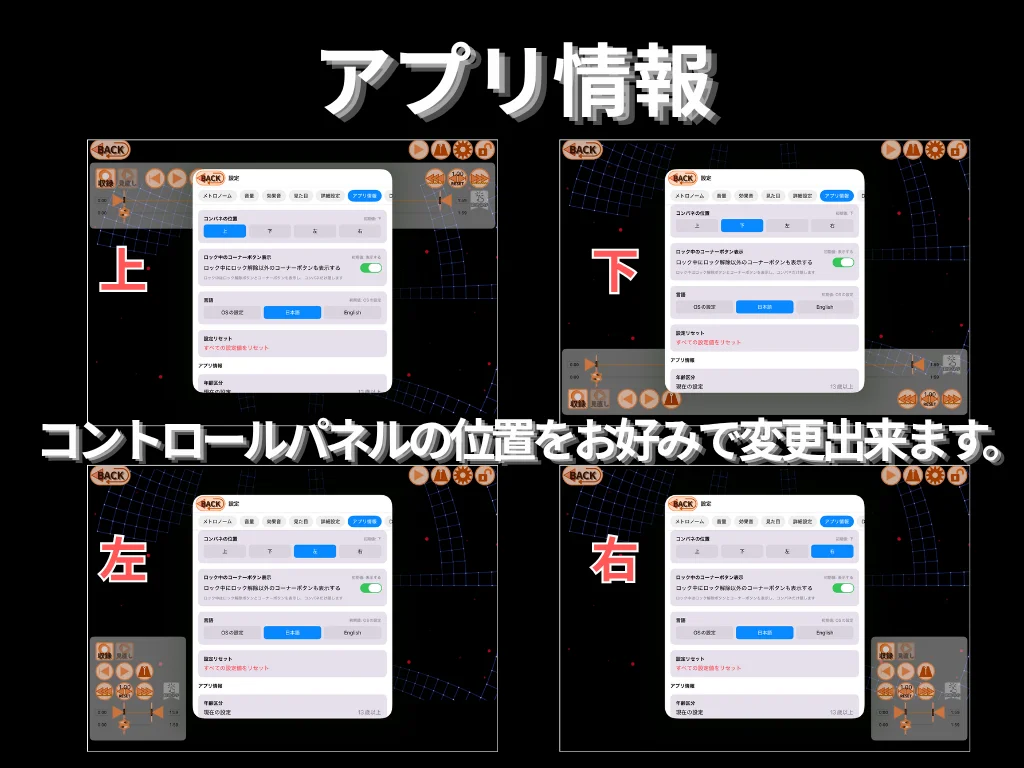
  27. App info. Place the control panel at the top, bottom, left, or right of the screen.

    App info. Place the control panel at the top, bottom, left, or right of the screen.